


Product Activation Guide
Product Activation Guide
Thank you for your purchase from Orolong LLC. Once your order is confirmed, your digital license key is delivered directly to your email inbox — usually within minutes. This guide walks you through everything you need to activate your software quickly and successfully.
Step 1 — Find Your License Key
After your payment is processed, check the email address you used at checkout. You will receive an order confirmation email from support@orolong.shop containing your license key and any product-specific instructions. If you do not see it within 30 minutes, please check your spam or junk folder.
If you still cannot locate your key, contact us at support@orolong.shop or reach us on WhatsApp at +1 570 531-2665 and we will resend it promptly.
Step 2 — Choose Your Activation Method
Depending on the software you purchased, there are a few common activation methods. Follow the instructions that match your product.
Online Activation (Most Common)
- Download and install the software from the official Microsoft website.
- Launch the application after installation.
- When prompted, select “Enter a product key” or “Activate with a license key”.
- Type or paste your license key exactly as provided — including any dashes.
- Click Activate or Next and follow any on-screen instructions.
- Once activation is confirmed, you are ready to use your software.
Microsoft Office Activation
- Download Microsoft Office from office.com or setup.office.com.
- Sign in with your Microsoft account (or create one for free).
- Select “Enter a product key” and input the 25-character key you received by email.
- Follow the prompts to complete installation and activation.
- Your license will be linked to your Microsoft account for easy reinstallation in the future.
Windows OS Activation
- Open Settings → System → Activation.
- Click “Change product key” and enter your Windows license key.
- Click Next and then Activate.
- Windows will verify your key with Microsoft’s servers. Once confirmed, your system is fully activated.
Phone Activation (When Online Fails)
In rare cases — typically with volume or older licenses — online activation may not succeed. If you see an error indicating you need to activate by phone, follow these steps:
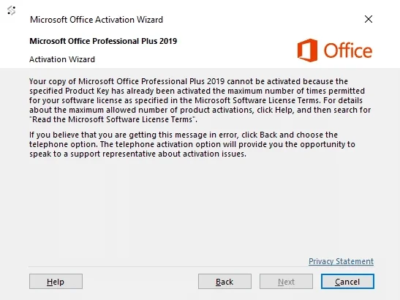
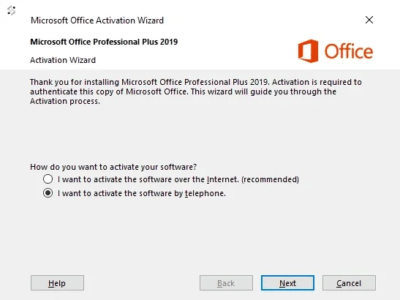
- When the activation wizard displays a phone activation prompt, click Next.
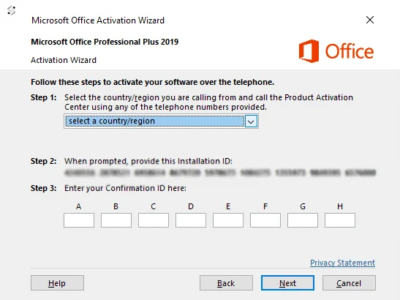
- Select your country from the dropdown to generate the correct phone number.
- Call the number provided and follow the automated instructions.
- You will be asked to read out your Installation ID — enter it via your phone keypad.
- The system will generate a Confirmation ID. Enter it into the activation wizard and click Next.
- Your software is now activated.
If you have any trouble during phone activation, send us your Installation ID and order number at support@orolong.shop and our team will assist you directly.
Step 3 — Verify Your Activation
After activation, always confirm your software is fully licensed:
- Microsoft Office: Go to File → Account and check that it shows “Product Activated.”
- Windows: Go to Settings → System → Activation and confirm the status reads “Windows is activated.”
Important Notes
- One device per key: Unless otherwise stated, each license key is valid for activation on a single device. Please do not attempt to activate the same key on multiple computers.
- Keep your key safe: Store your license key in a secure location. We recommend saving the original delivery email or copying the key to a password manager.
- Internet required: Most online activations require an active internet connection during the activation process.
- Reinstallation: If you need to reinstall your software, you can reuse your license key on the same device. For Microsoft products linked to your account, reinstallation is even simpler.
Need Help? We’re Here.
Our support team is available to assist you with any activation issue. Do not hesitate to contact us through any of the following channels (Mon–Fri 9 AM–6 PM · Sat 9 AM–4 PM · Sun Closed, Eastern Time):
- Email: support@orolong.shop
- WhatsApp / Phone: +1 570 531-2665
- Business Address: 198 Wyoming St, Wilkes Barre, PA 18705, USA
We typically respond within a few hours during business hours. Whether you are stuck on a specific activation step or simply have a question about your product, Orolong LLC is committed to making sure your software is up and running without hassle.
 WINDOWS SERVERS
 MICROSOFT OFFICE
 MICROSOFT PRODUCTS
 OPERATING SYSTEMS